Google Slides

Particularities
- To correct all slides in a presentation, use the Antidote Connector menu in the browser’s toolbar.
- To only correct the text on the current slide, use the Live Correction menu by clicking .
- Antidote detects text formatting (bold, italic and
strikethrough). - The speaker notes are not handled.
Live Correction
Live Correction lets you correct your writing in real time directly in the slides. No need to run the corrector. It includes the corrector’s key features: coloured underlining, explanatory tooltips and reformulation (with subscription).
The flask button appears automatically when you begin typing in a slide.
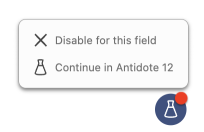
When you click the flask button, you get the option to Continue in Antidote. This will open the text of the current slide in the corrector. Once you have finished your revision, simply close the corrector; the changes are automatically applied to the original text. No need to copy-paste!
The option to Disable for this field removes Live Correction from all slides.
Antidote Connector
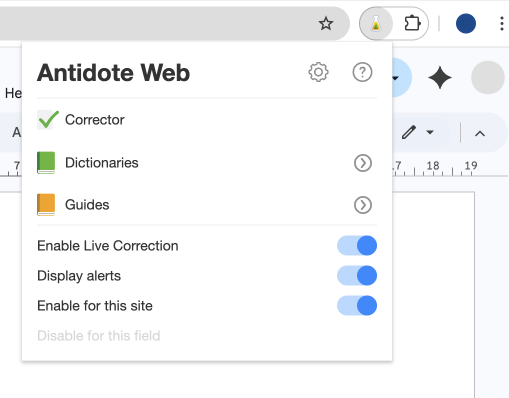
Click Antidote’s flask icon in the browser’s toolbar (1) to open the menu (2).
-
 12
12
Corrector
The corrector handles the text of all slides at once. However, if the mouse has a text box selected when you launch the corrector, only this text will open.
Dictionaries and Guides
Select the term you want to look up, then click the dictionaries icon or the guides icon. You can also click the next to the icons to select a specific resource.
-
 12
12
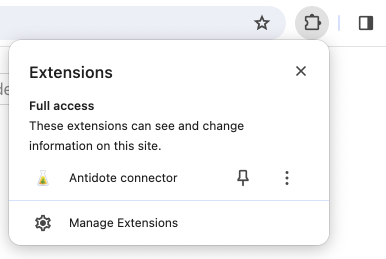
Tip — Pin the flask icon to the toolbar so it is always visible by clicking the Chome extension icon (1), then the pushpin icon (2).