Access Control and Exam Mode
Antidote Web has functions specifically designed for schools, including an exam mode that makes it easier to monitor its use. You can also grant group members access to only some of the tools and content. For example, you may want to restrict access to the corrector during an exam, while still leaving the dictionaries accessible to your students.
There are two ways to manage a group’s access to tools and content:
- In general, from the group permissions in Antidote Web’s management interface
- During evaluations, using a URL configured for Safe Exam Browser (SEB)
Exam Mode
Antidote Web’s exam mode makes it easy to tell at a glance if students are using the permitted version. Enabling it changes the interface’s appearance. The colour scheme is different, and a banner clearly indicates that an exam is in progress. Restricted tools and content are greyed out in the banner on the left.
-
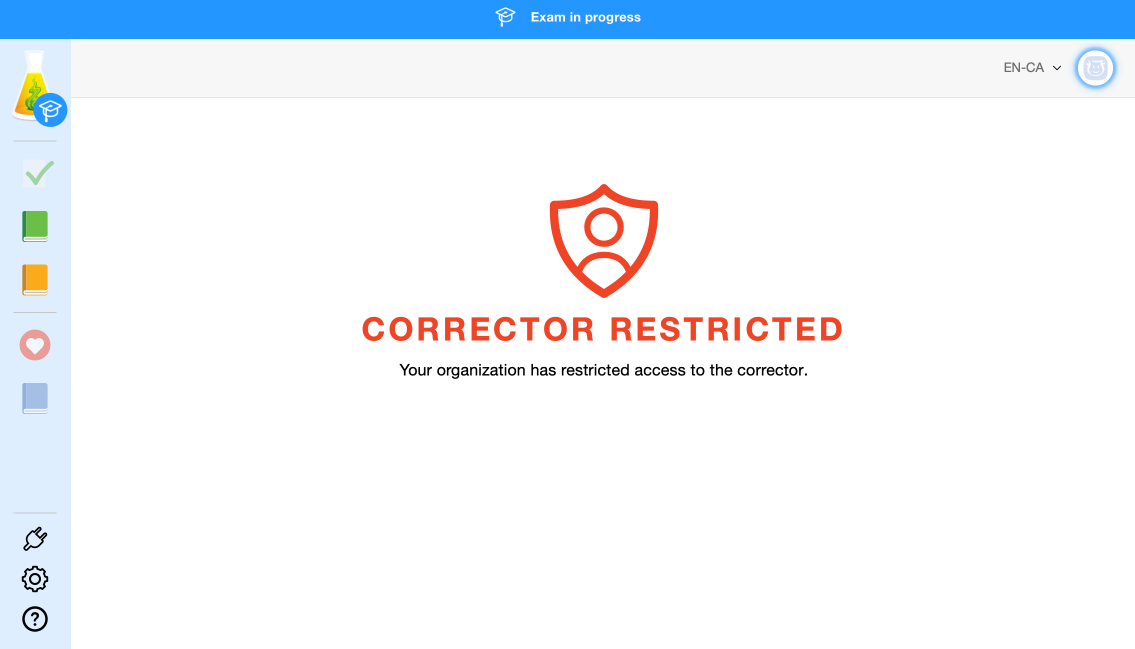
Example of Antidote Web’s interface in exam mode with access to the dictionaries and guides only
Exam mode with a URL for Safe Exam Browser (SEB)
We recommend using exam mode with a URL during evaluations. Enter this URL in SEB or in the exam intended for SEB so that Antidote Web opens in exam mode. Add parameters to the URL to manage access to the tools and content.
Important — URL parameters will not override restrictions configured manually in Antidote Web’s management interface. For example, if you already restricted a group’s access to the corrector’s Reformulation mode, the URL parameters will not enable its use.
Exam mode with group permissions
You can also enable exam mode using group permissions in Antidote Web’s management interface. Enabling it restricts access to the corrector, student data and external resources by default.
-

Example of default exam mode restrictions in the group permissions