Safeguarding your account
Enabling multi-factor authentication is recommended to safeguard your Druide account. Here’s how to set it up in the Client Portal and use it.
Multi-factor authentication (MFA)
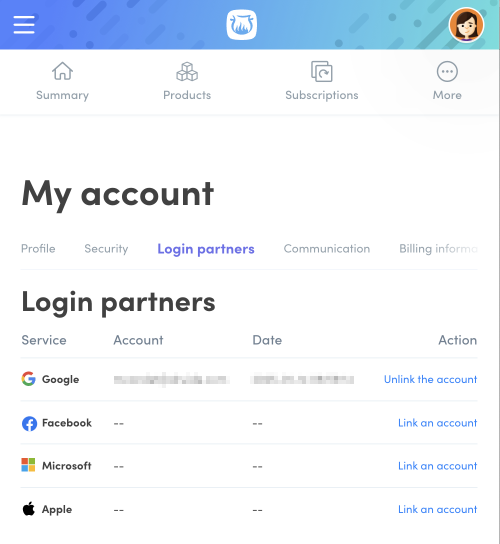
MFA is a security measure that adds an extra layer of verification when you log in with your Druide ID (email and password). The password associated with your Druide ID is one factor. A code either sent to your email or generated by an external authentication app that verifies your identity constitutes an additional factor. MFA cannot be enabled with a login partner (Microsoft, Google, Apple or Facebook).
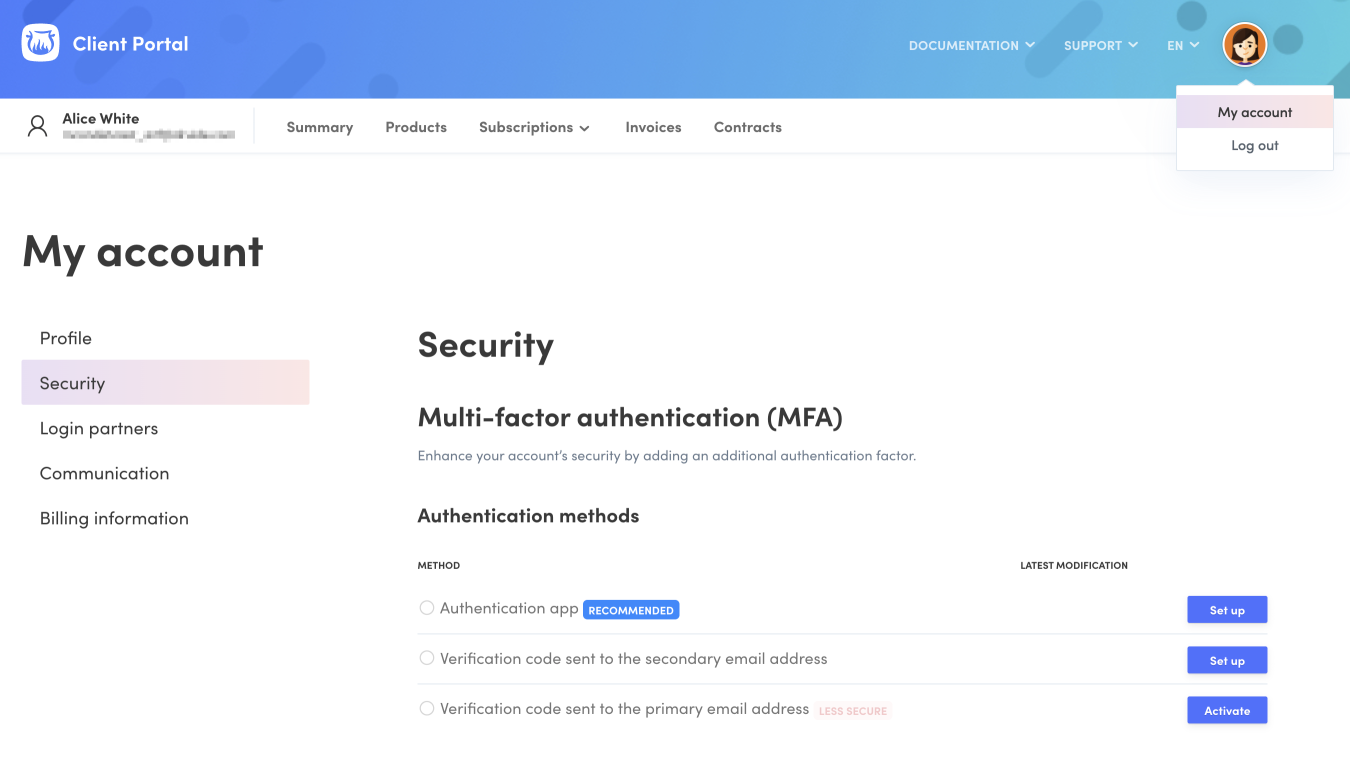
Three MFA methods are available:
- Using an authentication app
- Receiving a code to your secondary email address
- Receiving a code to your primary email address
Here is how to make your selection:
-
Click your avatar and select My account from the drop-down menu.
-
Go to the Security tab.
-
Under Authentication methods, click the button next to the one you want to configure.
-
 123
123
-
Check out the frequently asked questions for more information about MFA and account security. If you want to know more about how to log in with MFA, read the detailed process.
Setting up MFA with an authentication app
Configuring an authentication app is the most secure MFA option and the one we recommend. There are many free or paid apps you can choose from (e.g. Microsoft Authenticator, Google Authenticator, 1Password, Authy, etc.). After configuring your authentication app, return to the Client Portal.
-
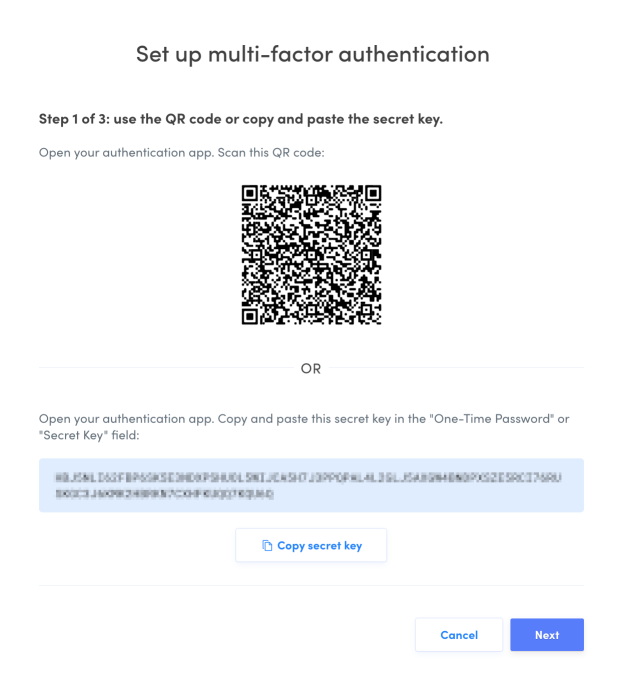
Once you click the Set up button next to Authentication app, a window with a QR code and a secret key will pop up.
-
Open your authentication app. There are two options for capturing the Client Portal data.
Option 1: Scan the QR code with the authentication app.
Option 2: Copy-paste the secret key in the corresponding field in the authentication app. This field is sometimes called One-Time Password.-
 2 – Option 12 – Option 24
-
-
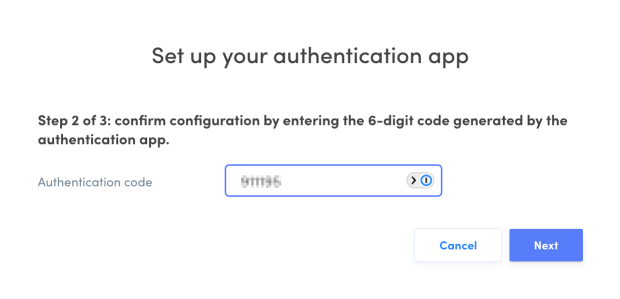
Follow the steps on your authentication app until you get an authentication code or one-time password made up of six digits. Copy this code.
-
Return to the Client Portal, then click Next.
Note — This 6-digit code is temporary and changes quickly. If it expires before you use it, simply return to the authentication app and copy the new code.
-
Paste the 6-digit code in the Authentication code field.
-
Click Next.
-
 56
56
-
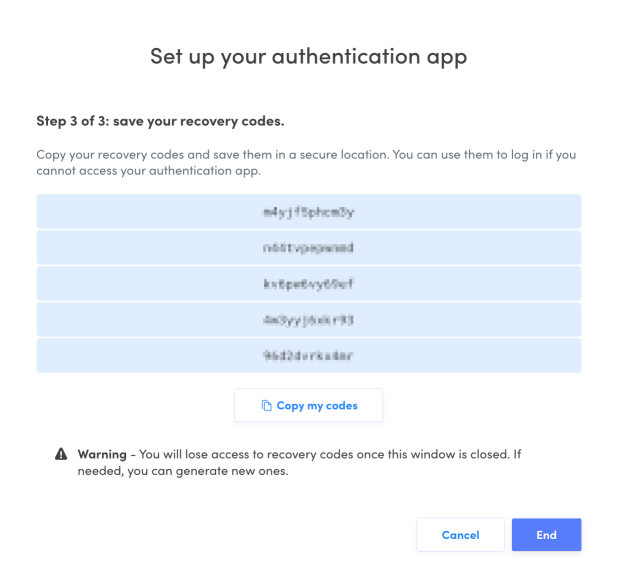
The Client Portal will provide five complex recovery codes. These codes should only be used for troubleshooting, for example, if you cannot access your authentication app. Copy these recovery codes and save them in a secure location.
-
Click End to finish setting up MFA with an authentication app.
-
 78
78
-
Tip — Save your recovery codes in several secure locations so that you always have them on hand in case of authentication issues (e.g. working from home, loss of your device or problems accessing your authentication app).
Setting up MFA with a secondary email address
Link another email address to your Druide account to receive a verification code. This can constitute your main MFA method, but you can also set it up as a backup method in case any problems arise with your authentication app.
-
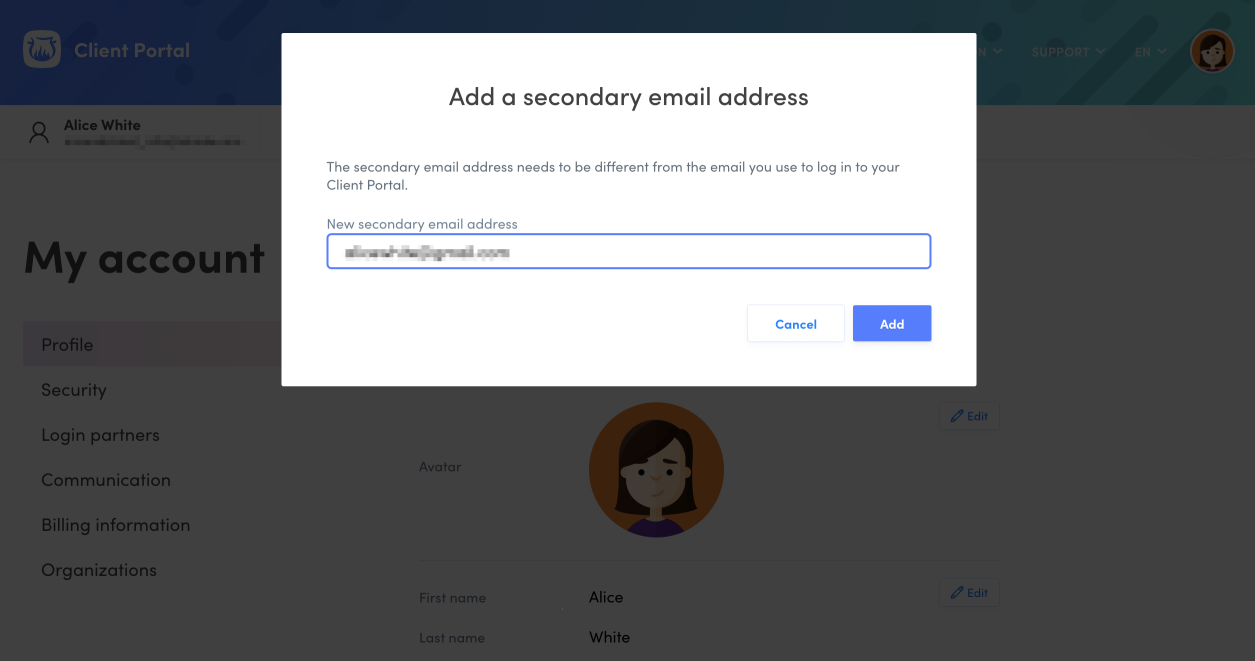
Once you click the Set up button next to Verification code sent to the secondary email address, you will be redirected to the Profile tab and a window will pop up.
-
Enter a secondary email address that is valid and different from the email used for your Druide account.
-
Click Add.
-
 23
23
-
-
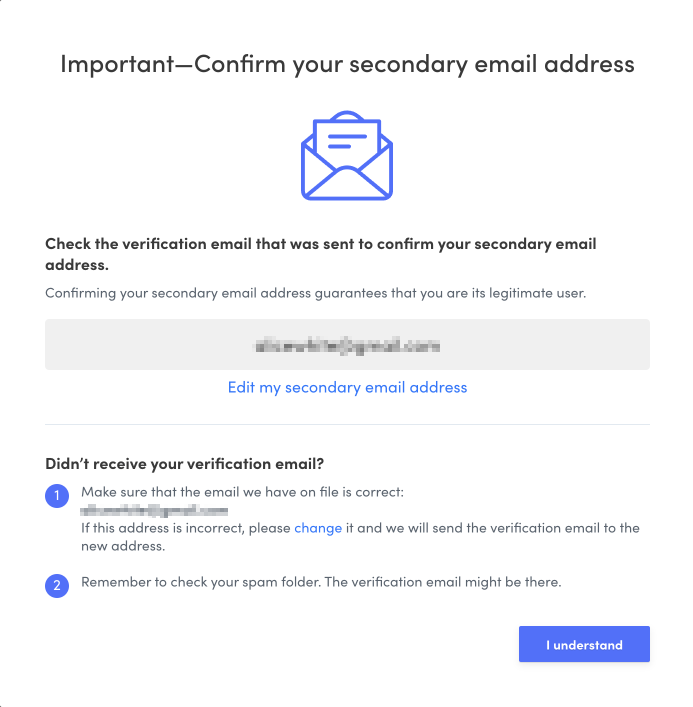
In your secondary email inbox, open the verification email you have received and follow the steps to confirm this email address. Once the email address has been verified, click I understand.
-
 4
4
-
Didn’t receive a verification email?
Correct the email address, if applicable, using the Edit my secondary email address link right under the field showing the email address. You will get a new email.
-
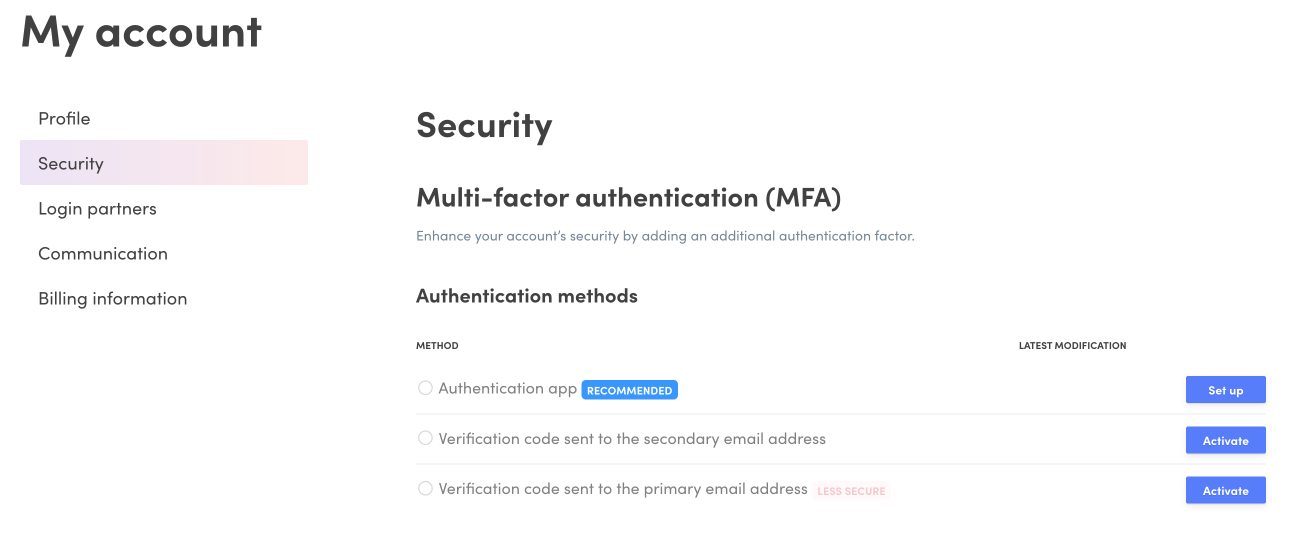
Return to the Security tab.
-
Click Activate next to Verification code sent to the secondary email address.
-
 56
56
-
-
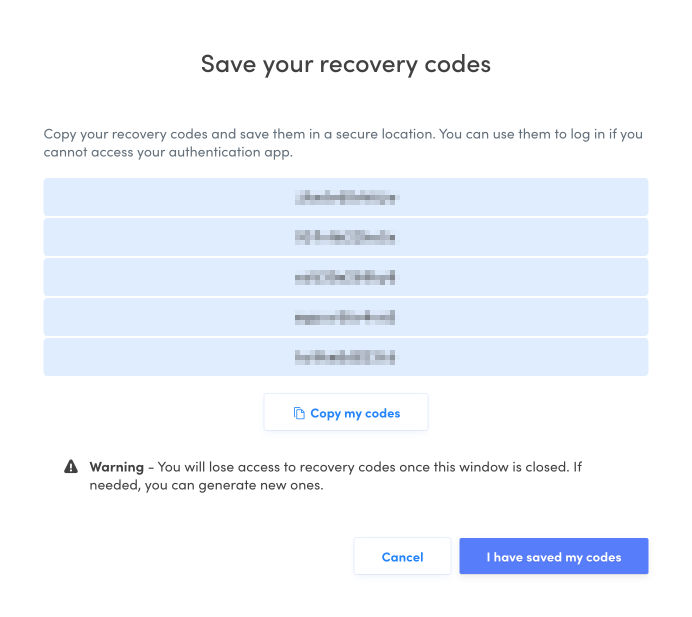
The Client Portal will provide five complex recovery codes. These codes should only be used for troubleshooting, for example, if you do not receive a verification code email. Copy these recovery codes and save them in a secure location.
-
Click I have saved my codes to finish setting up MFA with your secondary email address.
-
 78
78
-
Setting up MFA with your primary email
Get a verification code in your primary email inbox to verify your identity each time you log in.
Note — Using only your primary email address is the least secure MFA method, and it will be disabled if you set up another one.
-
Once you click the Activate button next to Verification code sent to the primary email address, a window will pop up and the Client Portal will provide five complex recovery codes. These codes are different from the verification code, and they should only be used for troubleshooting, for example, if you do not receive a verification code email. Copy these recovery codes and save them in a secure location.
-
Click I have saved my codes to finish setting up MFA with only your primary email address.
-
12
-
FAQ
I forgot my Druide account password. What should I do?
If you have forgotten your password, click Forgot your password? located under the Password field in the login window and enter the email address linked to your Druide ID. You will receive an email shortly thereafter to reset your password.
Can I enable MFA if I only log in using a login partner?
No. An account created with a login partner (Microsoft, Google, Apple or Facebook) does not use a password, whereas MFA is prompted only for password-based authentication.
I hid my recovery codes too well and cannot find them anymore. What should I do?
You can generate new recovery codes in the Client Portal, in the Security tab of the My account section. Click the Regenerate button to get five new codes, which will overwrite the previous ones. Save the new codes in a secure location.
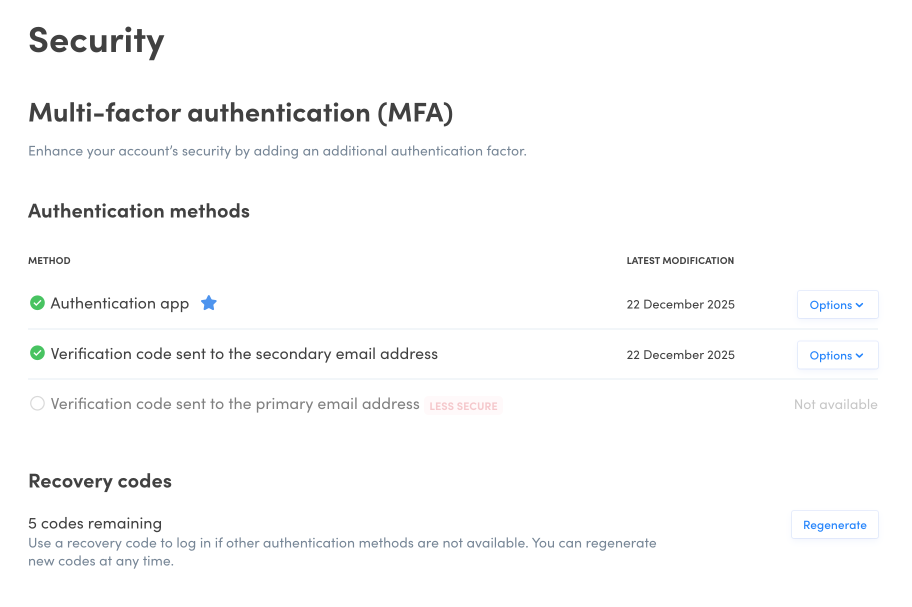
Warning — You must always have at least one valid recovery code. Generate new ones if needed. When you only have one left, you will be notified in the Client Portal.
I changed my authentication app. How can I change my Druide account settings?
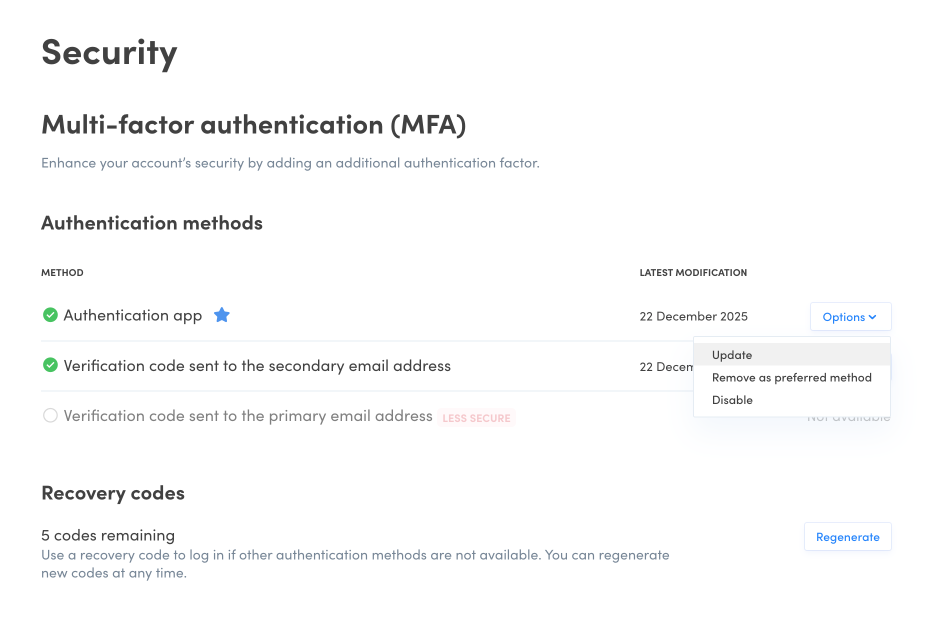
To reconfigure your authentication app, go to your Client Portal, in the Security tab of the My account section. Click Options (1), then Update from the drop-down menu (2) to remove the current authentication app and set up the new one.
-
 12
12
My authentication method has been compromised. What should I do?
As a precautionary measure, you must reset your security settings. To do this, follow these steps:
-
Log in to the Client Portal.
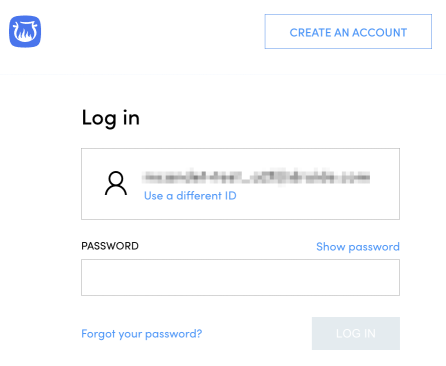
A) If your password no longer works, change it by clicking Forgot your password? and following the instructions.
-
 1A
1A
B) If you cannot use MFA after entering your password, use a recovery code or request technical support.
-
-
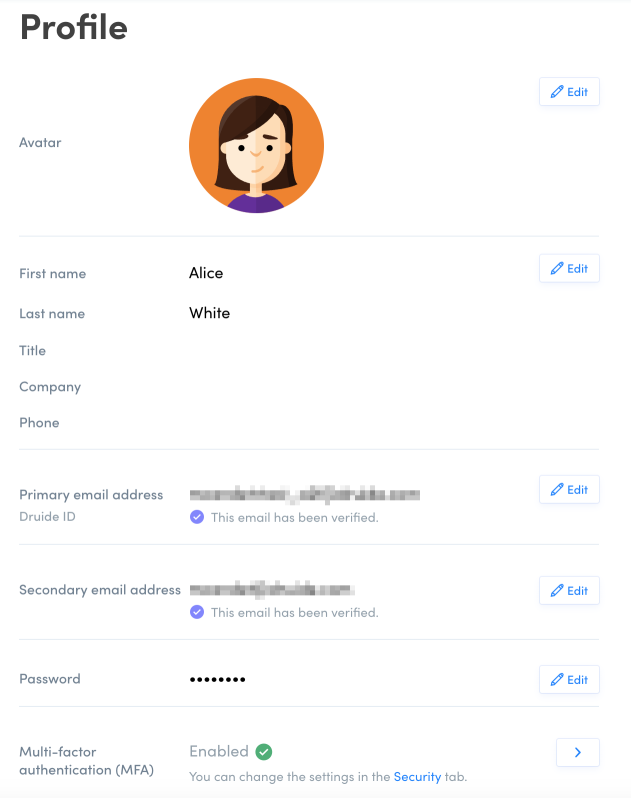
Change your password if you have not done so in step 1. You can change it in the Profile tab of the My account section.
-
 2
2
-
-
If your secondary email address has been compromised, change it.
-
3
-
-
Then, go to the Security tab of the My account section.
-
Click the Options button next to Authentication app.
-
Select Update. This will remove the authentication app from your account and allow you to set up a new one.
-
Click the Regenerate button next to Recovery codes. The five new codes will overwrite the compromised ones. Save these new codes in a secure location.
-
567
-
-
Lastly, check that no external login partners were added without your knowledge in the Login partners tab of the My account section. Remove any that you do not recognize or that have been compromised, if applicable.
-