Logging in with MFA
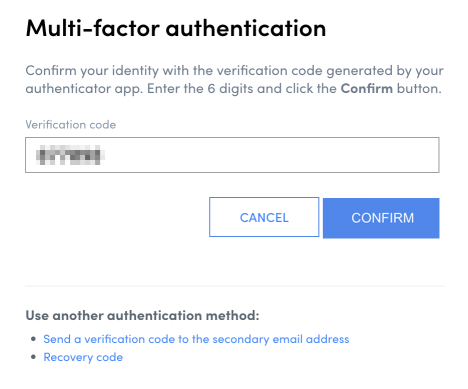
When you log in to your Druide account, you must first enter your password. If MFA is enabled, the Client Portal will require another authentication factor.
- Open your authentication app, secondary email or primary email and copy the code provided.
- Return to the Client Portal and paste this code in the Verification code field.
- Click Confirm.
If you use an authentication app and it is connected to your browser, it might enter the code automatically.
-
 23
23
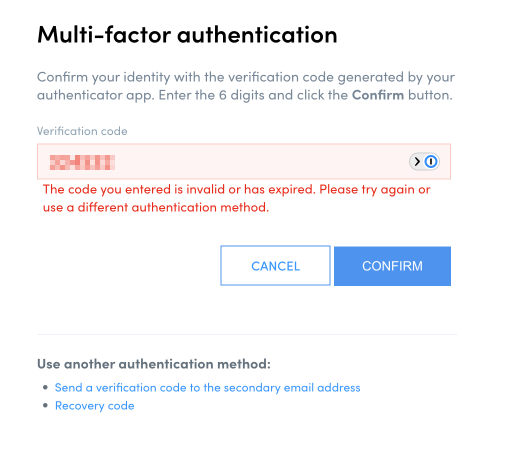
Having issues with your verification code?
If you are having trouble with MFA, use one of your recovery codes to log in.
-
Click the Recovery code link.
-
 1
1
-
-
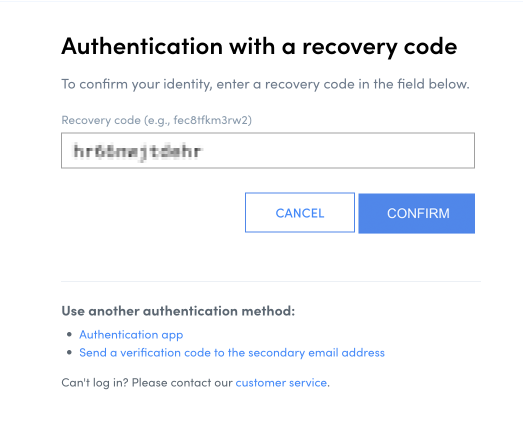
Enter one of your recovery codes in the corresponding field.
-
Click Confirm.
-
 23
23
Note — Recovery codes can only be used once. If you lose or use all of them, you can generate new ones in your Client Portal.
Using your secondary email to log in
If you use an authentication app and there is a problem with your recovery codes, or if you don’t have any, you can request a verification code if you have set up a secondary email address.
-
Click Send a verification code to the secondary email address.
-
1
-
-
Go to your secondary email inbox.
-
Copy the code in the email entitled “Your verification code”.
-
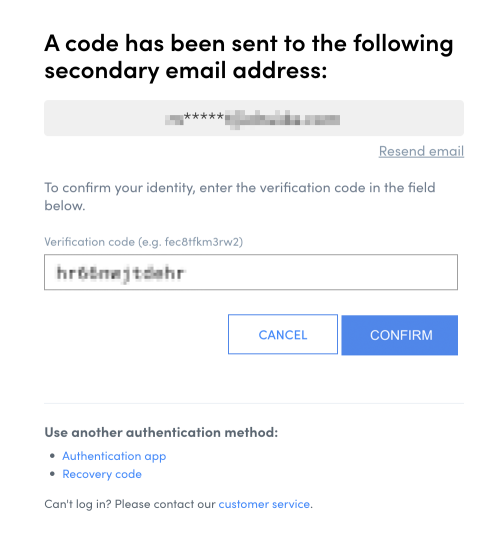
In the Client Portal, paste the code in the Verification code field.
-
Click Confirm.
-
 45
45
Didn’t receive an email entitled “Your verification code”?
Return to the Client Portal and click Resend email.
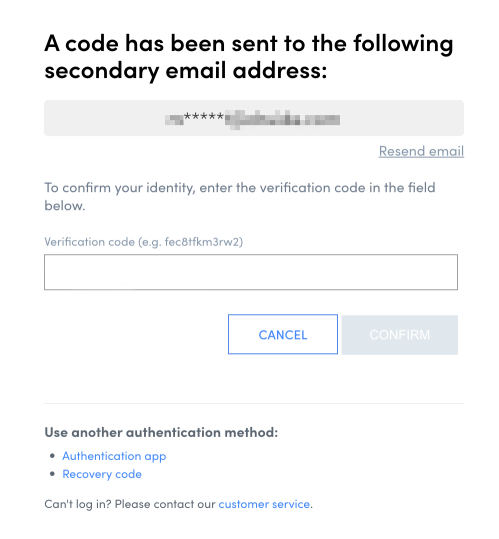
Copy the code from the email and paste it in the Verification code field, then click Confirm.
Warning — The link to request a code is only available if you have already added a secondary email address. Otherwise, please contact our customer service.