Safe Exam Browser (SEB) is designed to conduct exams in a controlled digital environment. Enabling SEB restricts access to other electronic resources, applications and websites during the evaluation. However, you can enable access to Antidote Web in this browser.
Entering the URL in SEB
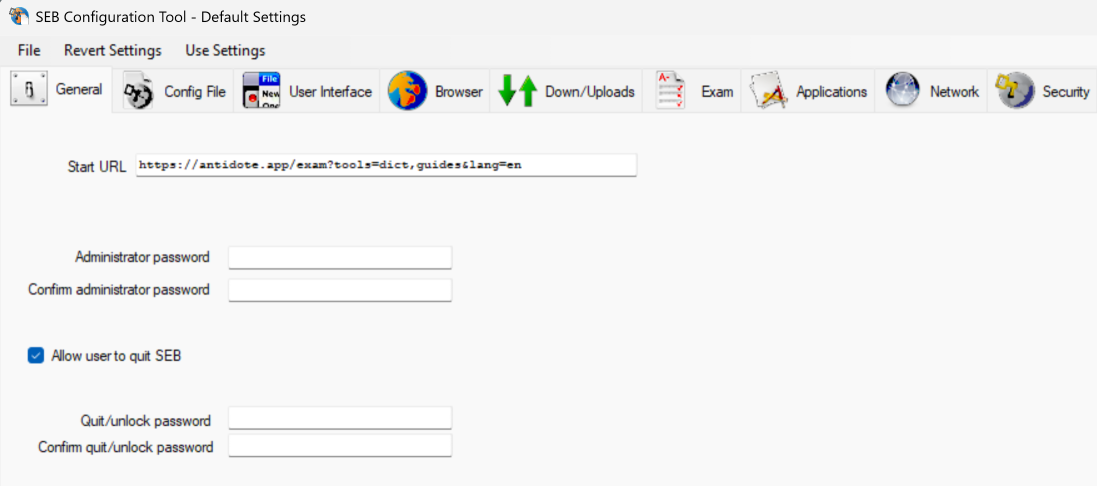
If you don’t conduct your exam in SEB but want to use it to enable access to Antidote Web in exam mode, enter the URL you created in the SEB configuration tool. Go to the General tab and enter the URL in the Start URL field.
General tab in the SEB configuration tool
If you conduct the exam in SEB, enter the exam URL in the Start URL field. Enter your custom URL only in the exam (e.g. in Moodle) to enable access to Antidote Web.
Specify in the code that the link should open in a new window, for example: <a href="https://antidote.app/exam?tools=dict,guides&lang=en" target="_blank" rel="">Antidote Web</a>. Otherwise, students will not be able to return to the exam page after using Antidote.
Make sure to enter the same custom URL everywhere in the exam.
Enabling Antidote Web
You must change some of the settings in the SEB configuration tool to grant access to Antidote Web.
1. Opening in a New Browser Window
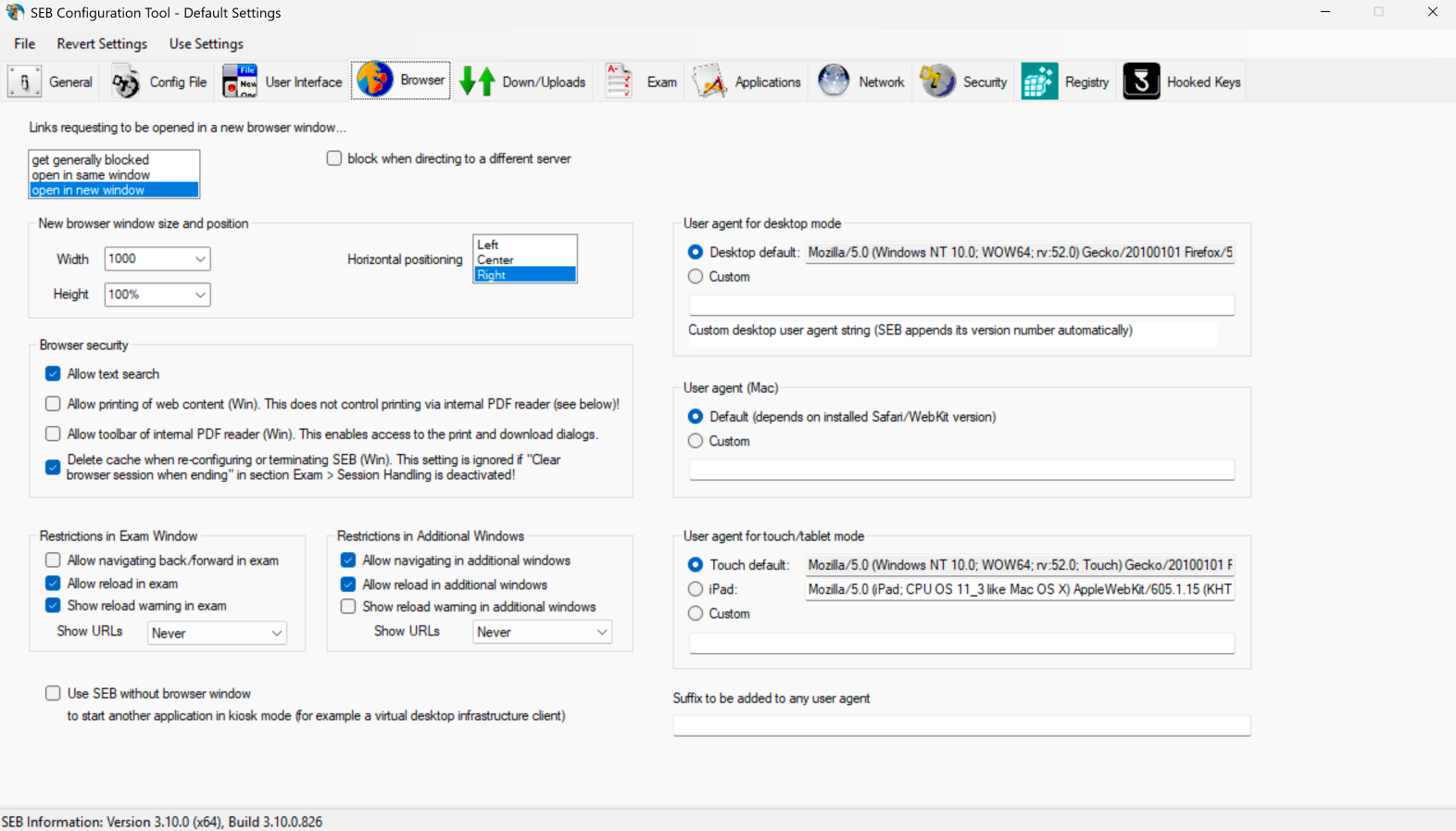
Allow links to open in a new browser window so students can use Antidote Web and return to the exam page.
A) Go to the Browser tab.
B) In the Links requesting to be opened in a new browser window section, select Open in new window.
C) Uncheck Block when directing to a different server.
Browser tab in the SEB configuration tool
A
B
C
2. Adding an Access URL for Antidote Web
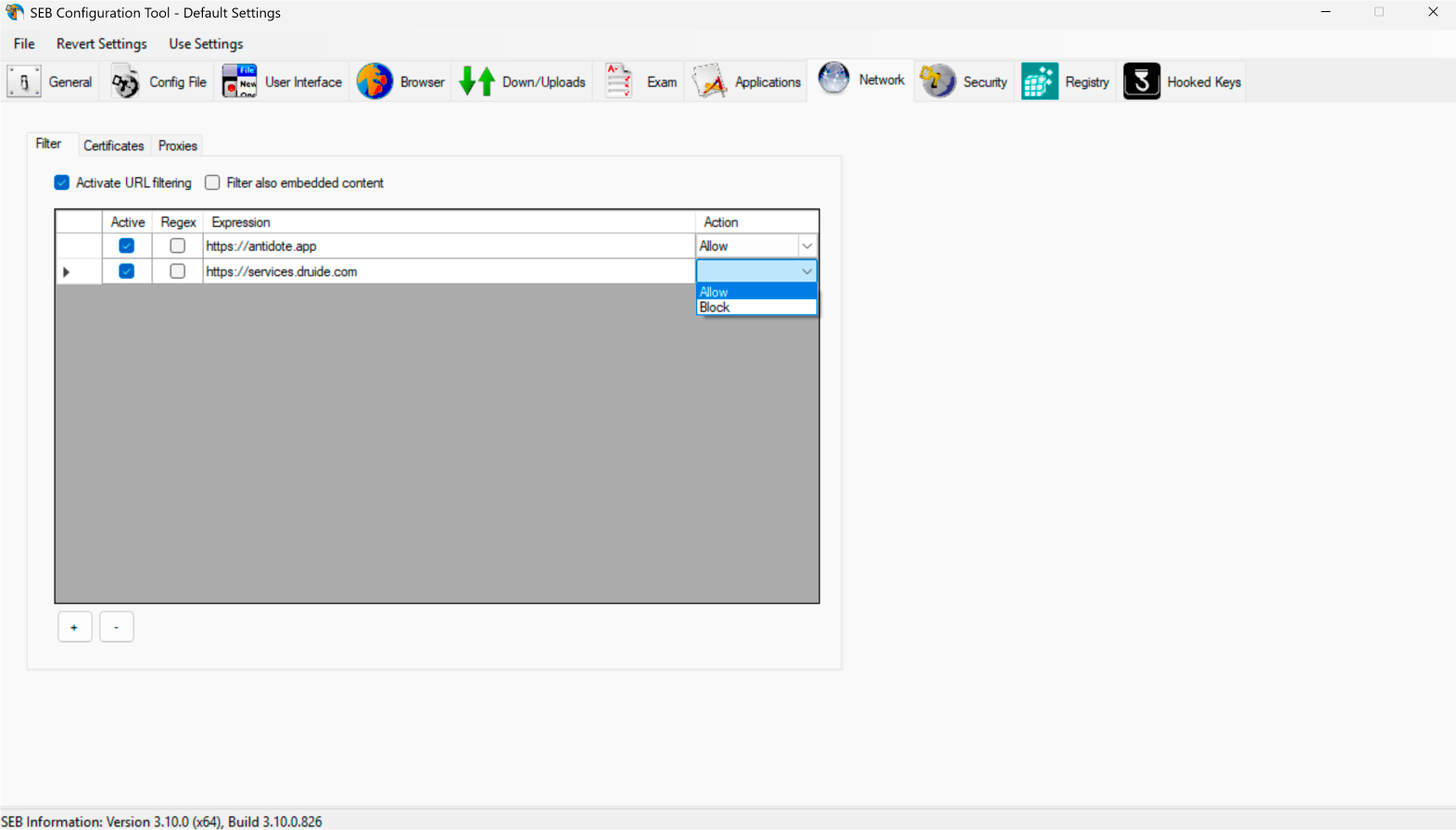
Set up URL filtering so that the link for Antidote Web is not blocked.
A) Go to the Network tab.
B) Select Activate URL filtering.
C) Add the following URLs:
https://antidote.app (Do not add your custom URL here.)
https://services.druide.com
If you use single sign-on with SAML, add the links for your identity provider as well. For example, add the following link if you use Microsoft Entra: https://login.microsoftonline.com.
D) In the Action column, select Allow for each URL.
Network tab of the SEB configuration tool
A
B
C
D
3. Enabling Copy-Paste
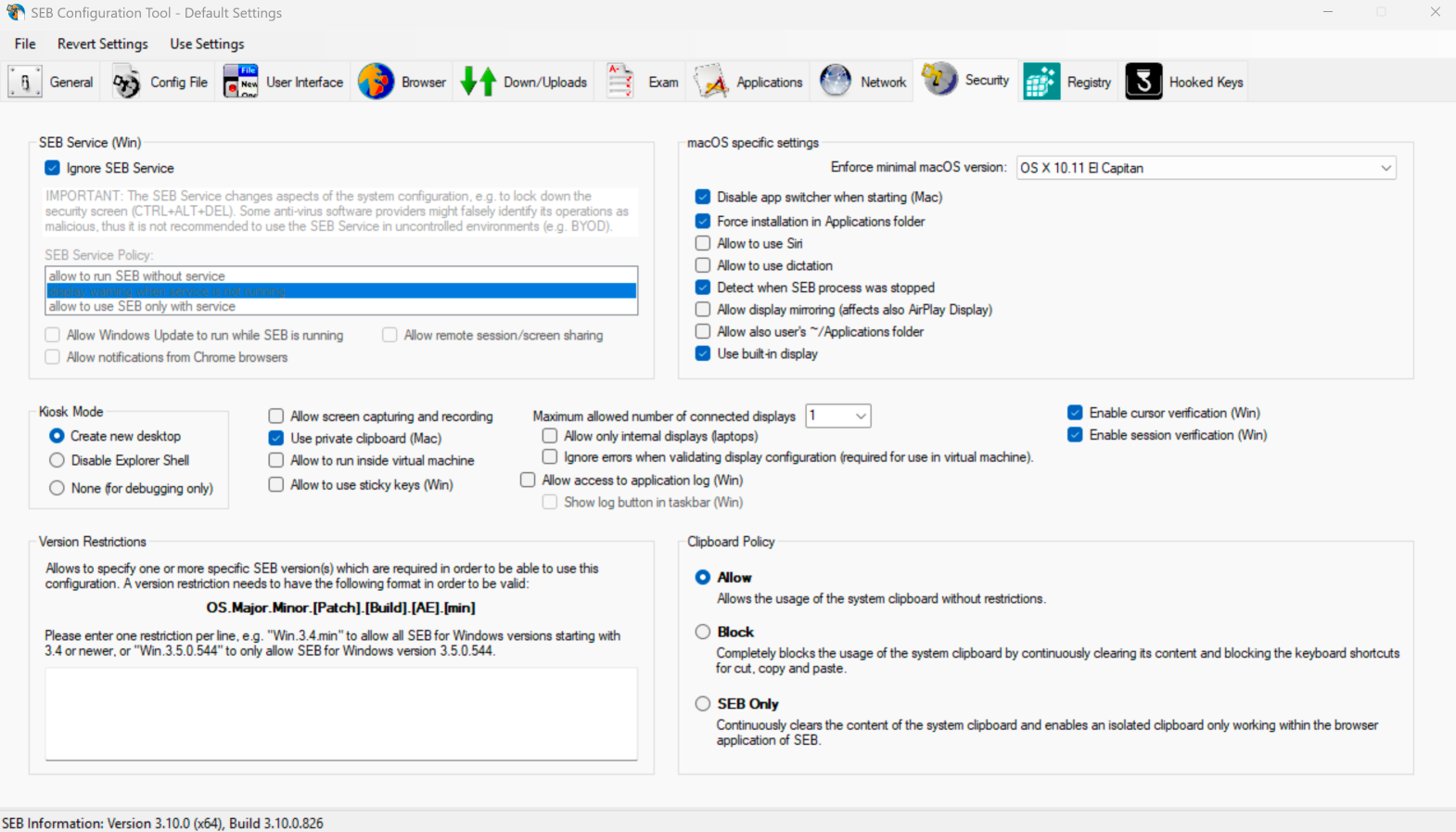
Allow use of the clipboard without restrictions so that students are able to copy-paste text between the exam and Antidote Web.
A) Go to the Security tab.
B) In the Clipboard Policy section, select Allow.
(The SEB Only option makes clipboard use unstable.)
Security tab of the SEB configuration tool
A
B
Securing URLs
Two conditions must be met to ensure the secure use of URLs in SEB:
Prevent navigation to a URL entered by the student.
Protect session data from student manipulation.
SEB’s default configuration meets these conditions. It disables the browser’s address bar and access to developer tools so that students cannot modify them, and it deletes cookies at the beginning and end of an exam. Nonetheless, we recommend following the steps below to make sure everything is configured correctly.
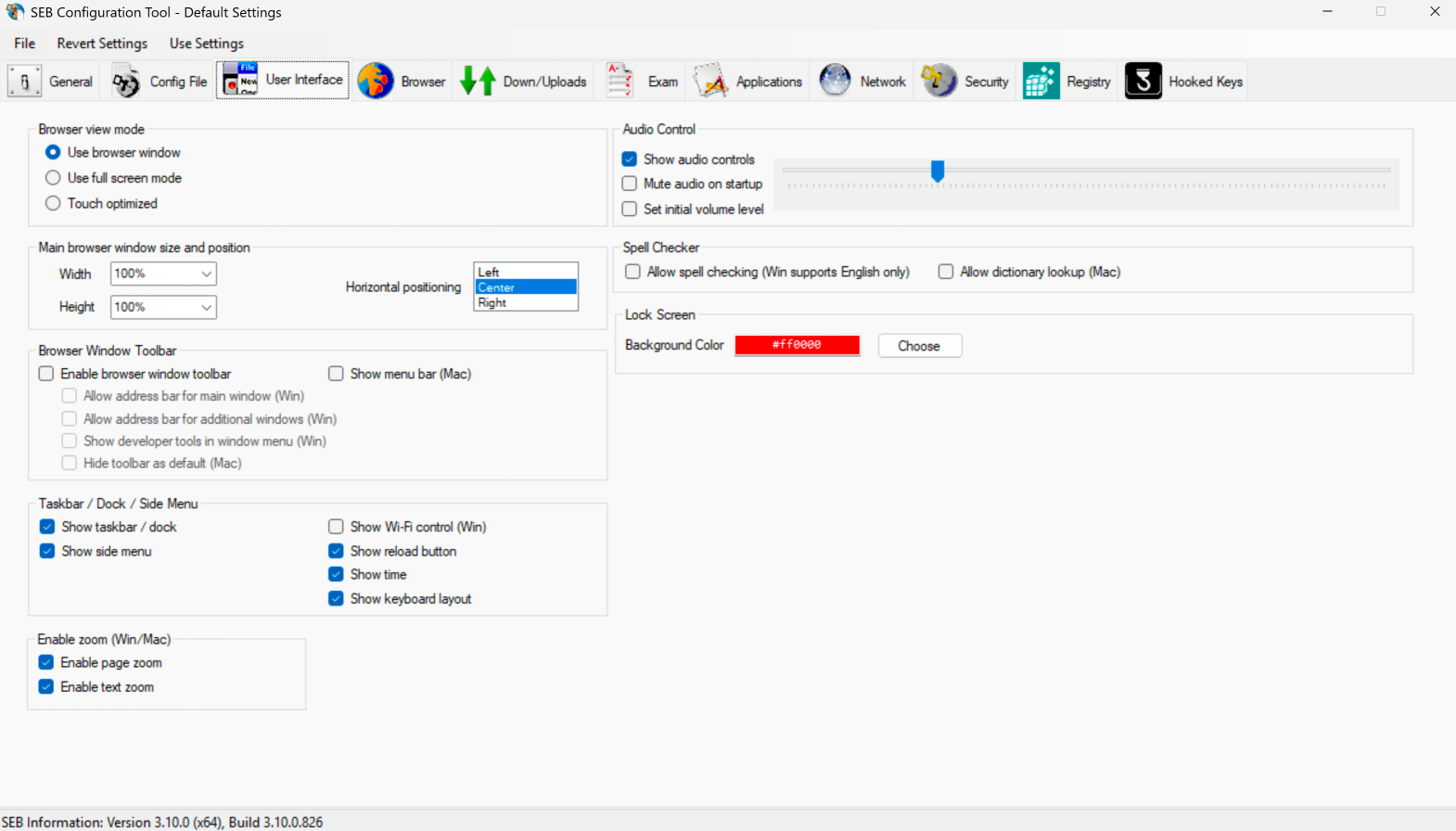
A) Go to the User Interface tab.
B) In the Browser Window Toolbar section, make sure the Enable browser window toolbar box is unchecked (or that at least the first three boxes are unchecked: Allow address bar for main window, Allow address bar for additional windows and Show developer tools in window menu).
User Interface tab of the SEB configuration tool
A
B
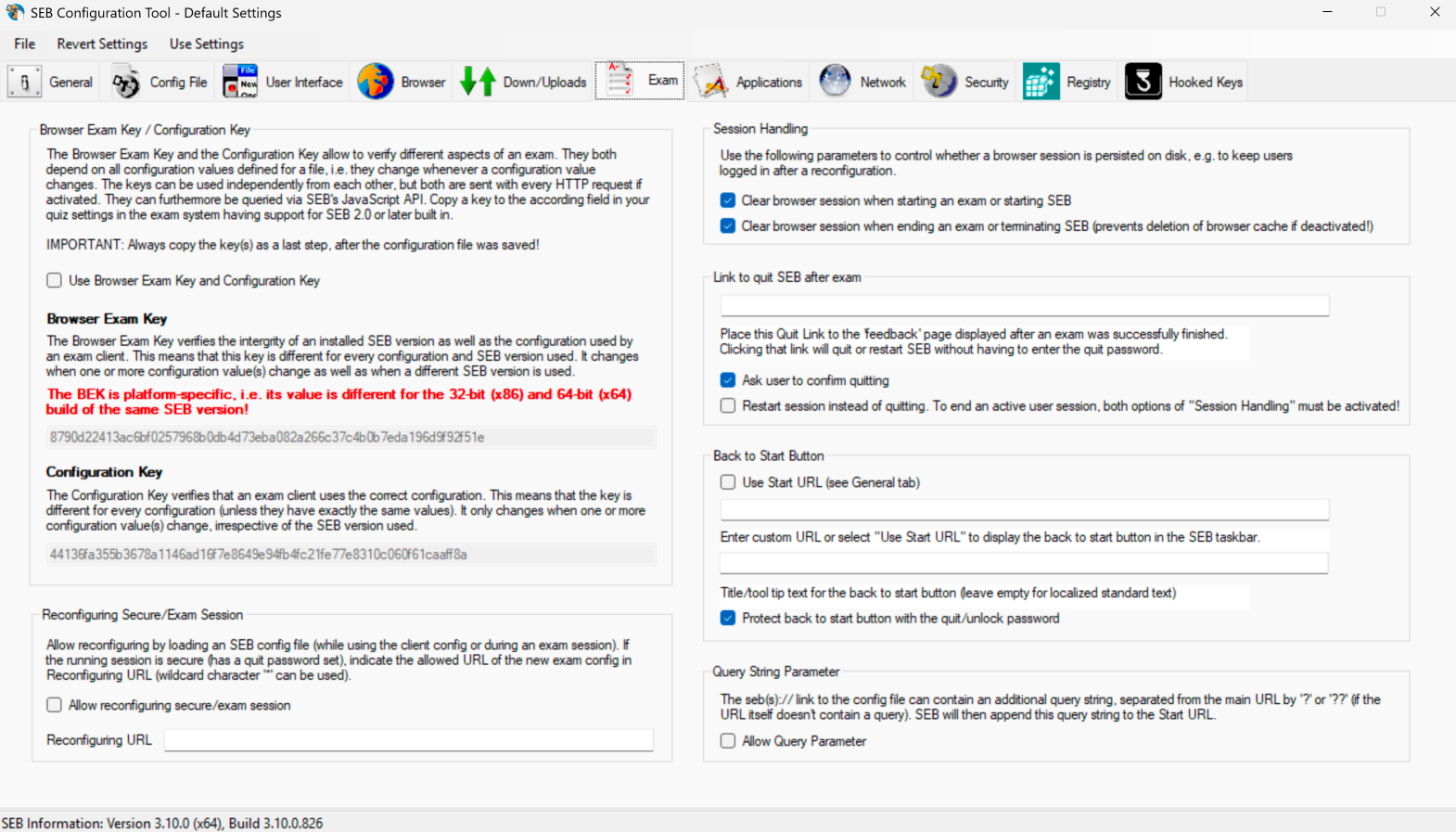
C) Then, go to the Exam tab.
D) In the Session Handling section, make sure both boxes are checked to delete the cookies.
Exam tab of the SEB configuration tool
C
D
E) Go to the Browser tab.
F) In the Browser Security section, make sure the Delete cache when re-configuring or terminating SEB box is checked to delete the cache at the end of the exam.
Browser tab of the SEB configuration tool
E
F
There you go! You can now conduct your exams and grant access to Antidote Web on a completely controlled digital environment.