
 4 min
4 min
Getting Started With Antidote: Improving Stylistic Elements

So you’ve chosen Antidote to remedy your writing and want to make the most of your new writing companion. But where to start? This series of four articles shows you the functions you need to know to use the corrector, dictionaries and language guides efficiently.
The corrector doesn’t just revise spelling and grammar; it includes a Style view and a Reformulation mode (with subscription) to help you polish your text. In this second article of the Getting Started With Antidote series, discover how to use these tools to give your writing style a boost.
SERIES — Getting Started With Antidote
- Correcting and Rewriting
- Improving Stylistic Elements
- Leveraging the Dictionaries and Guides
- Customizing the Tools
The Corrector’s Style View
Antidote suggests various ways of improving your writing in the corrector’s Style view. The detections in this view are not errors but rather opportunities to polish your text and make it more pleasant to read. Antidote analyzes it from different angles, called filters. A blue dot appears next to the ones with detections.
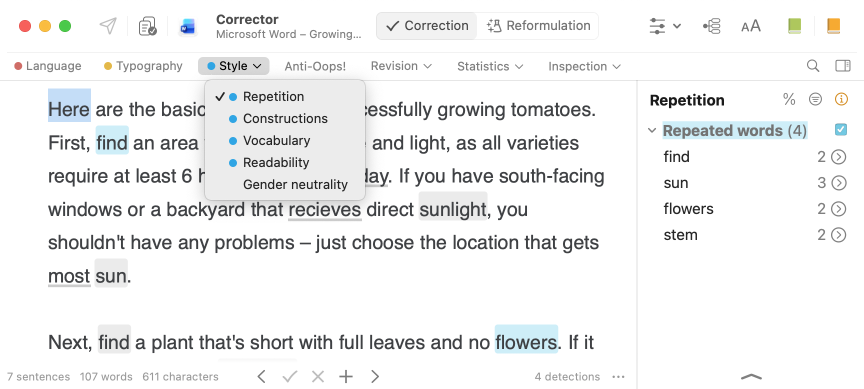
What the Style Filters Detect
Each filter calls your attention to different stylistic concerns.
| Filter | Purpose | Detection examples |
|---|---|---|
| Repetitions | Remove repetitive and superfluous terms and segments | - Individual words (the manager manages) - Adverbs ending in -ly (The content appears automatically directly on the page.) - Entire sentences (The meeting was cancelled. I just found out. The meeting was cancelled.) |
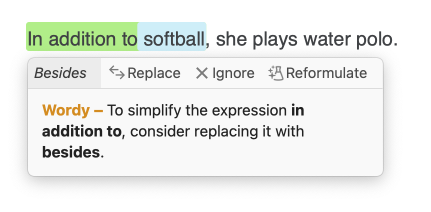
| Constructions | Make a text more dynamic | - Passive voice (The film was lauded by the critics.) - Impersonal constructions (it is, there are…) - Wordiness (In addition to softball, she plays water polo.) - Double negatives (It isn’t impossible that she will arrive.) - Complex tenses (She has been working here for a decade.) |
| Vocabulary | Enrich a text and reflect thoughts accurately | - Commonplace verbs (be, get, do) - Redundancies (final result) - Offensive terms (He’s such a fossil.) - Register (That was super fast!) - Regionalisms (Canada, US, UK, etc.) |
| Readability | Make the text read more easily and fluently | - Rare words (abnegate, palmary, tergiversate) - Long words (inconsequentially) - Long sentences (changeable word limit) - Nested phrases (of the passenger in the last row of the train) - Ambiguous antecedents (the report of the editorial team that diligently proved the information) |
| Gender neutrality | Eliminate bias by using gender-neutral language | - Nouns (firemen, lady doctor) - Pronouns (We don’t know who took it. He might have already left.) |
How to Use the Filters
1. Select a filter
Select one of the Style view’s filters, then click an underlined detection in your text to see an explanatory tooltip.
2. Handle the detection
The tooltip elucidates the detection. It usually includes a way to improve the text (A), a short explanation (B) and a selection of commands (C). You can Replace the segment with the suggestion, Delete an unnecessary element, Edit the sentence yourself, Ignore the detection, and in some cases, Reformulate the sentence.
-
 ABC
ABC
3. Reformulate if needed With subscription With subscription to Antidote+, Antidote Pro or Antidote Web"
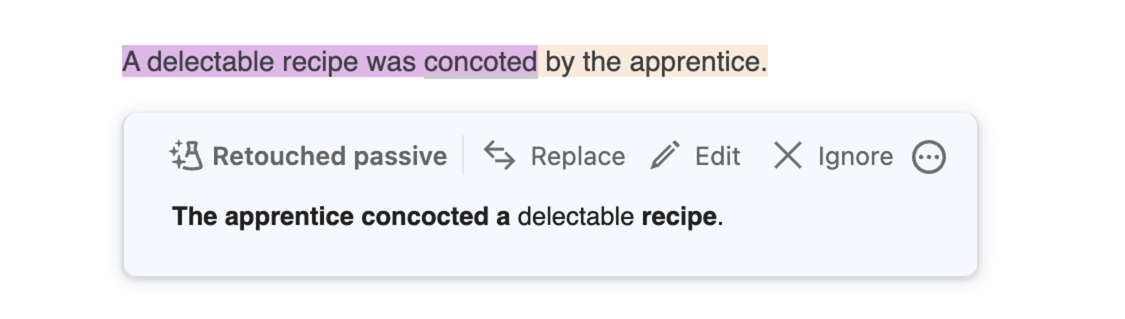
If you click Reformulate, Antidote proposes a solution targeting the goal of the selected filter. For example, in the Constructions filter, Antidote suggests rewording the sentence from passive to active, while still staying true to its meaning. Flipping the subject and object makes it more concise and dynamic.
To accept this suggestion, click Replace.
Which Style Detections to Edit
Style detections are not errors to be corrected but rather opportunities to improve a text. Antidote underlines anything that corresponds to the selected filter, but you don’t have to edit everything. For example, there is nothing wrong with using there is. But if it’s repeated multiple times, especially in close succession, you may want to make your text livelier by recasting it with different structures.
Reformulation Mode With subscription With subscription to Antidote+, Antidote Pro or Antidote Web"
In addition to the style filters, Antidote has a Reformulation mode that helps you improve your writing in no time. To access this mode, click the button on the right at the top of the corrector’s interface.

The Reformulation mode focuses exclusively on rewriting sentences using generative artificial intelligence. It includes four views that each meet a specific writing goal.
Reformulation Mode Views
| View | Purpose | Example |
|---|---|---|
| Rewrite | Reformulate sentences generically | 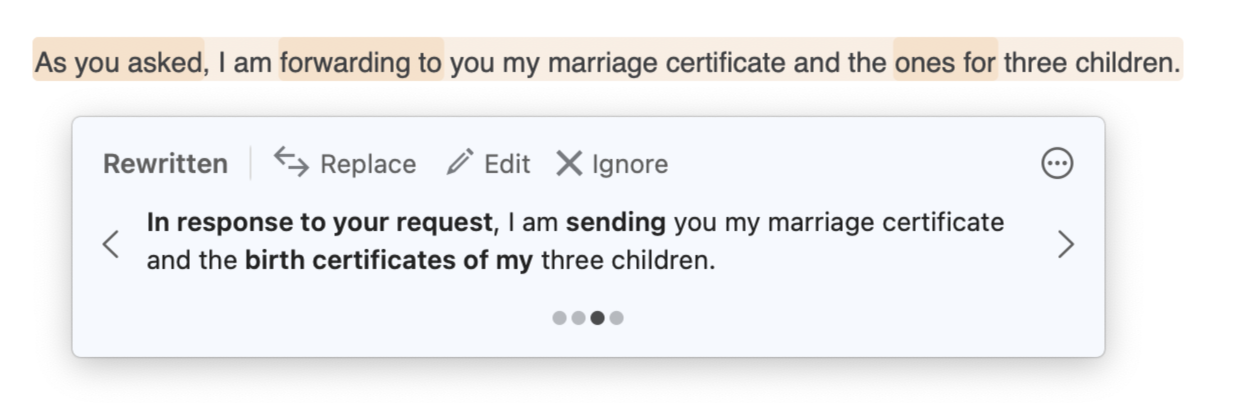 |
| Retouch | Target specific elements of style | 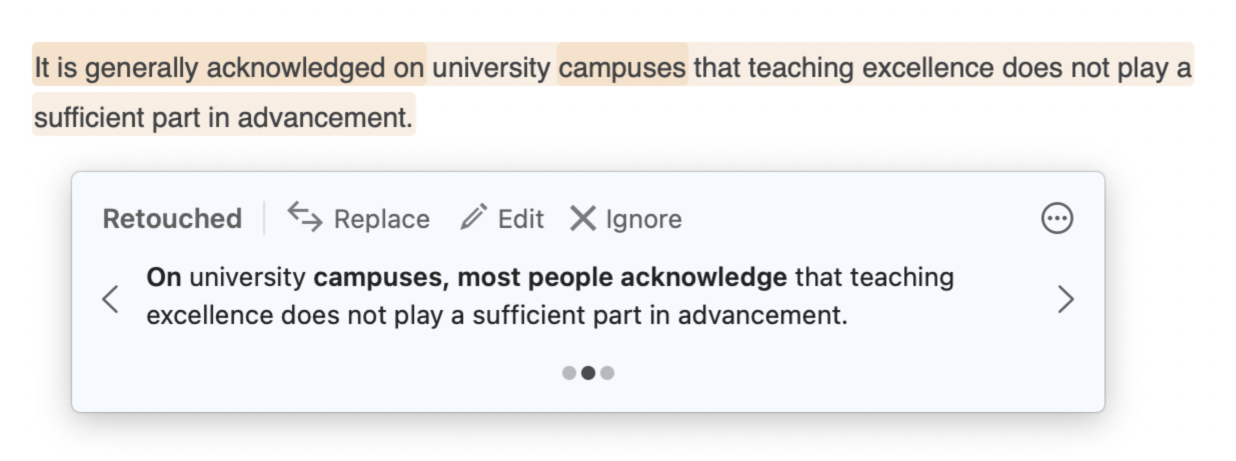 |
| Soften | Tone down language that might be ill received | 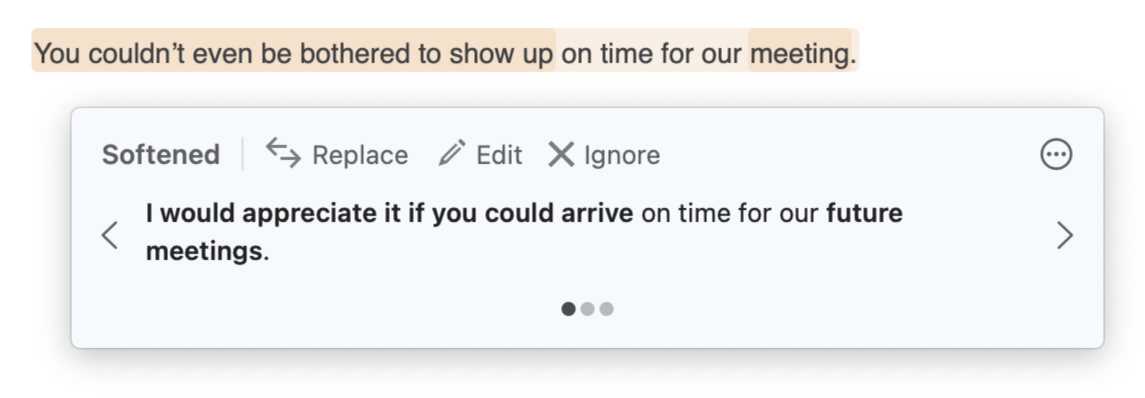 |
| Shorten | Reduce the length of a text and refine it | 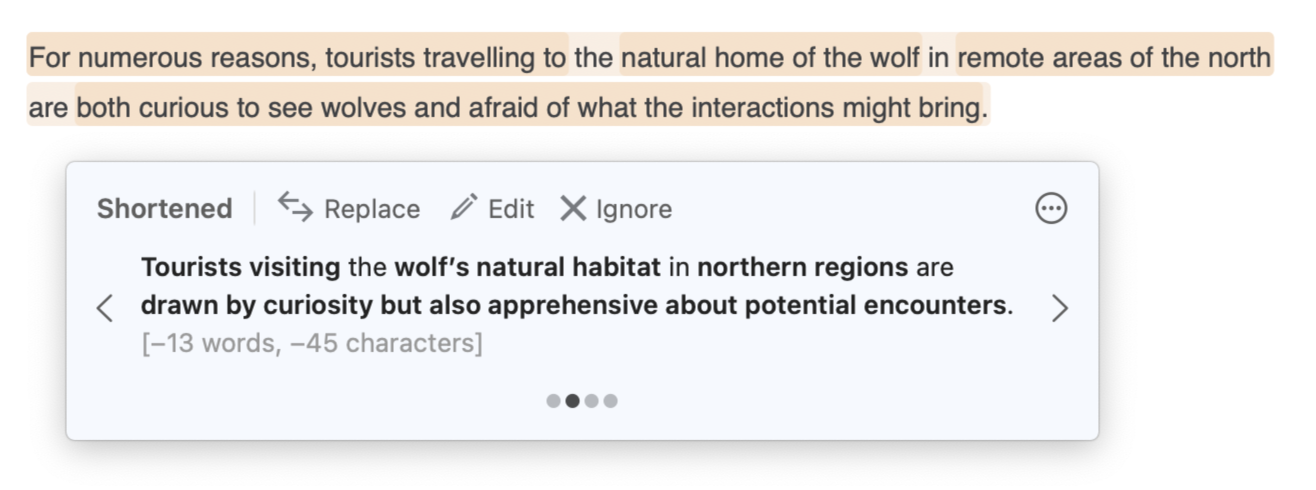 |
How to Use the Reformulation Mode
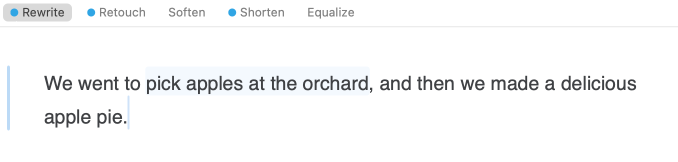
Select the view based on your writing objective (1), then choose a sentence to improve (2).
-
 12
12
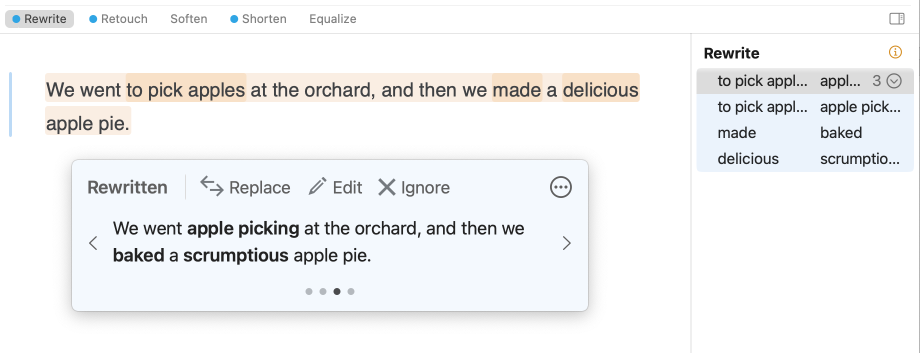
Antidote uses generative artificial intelligence—trained by linguists and their human intelligence—to suggest ways to rephrase your writing while staying true to your ideas. It provides up to four suggestions in a tooltip, from the most faithful to your text to the most modified. Reformulated segments appear in bold.
Here are four suggestions for the example sentence above:
- We went apple picking at the orchard, then we made a delicious apple pie.
- We went to the orchard and picked apples. Then we baked a delicious apple pie.
- We went apple picking at the orchard, and then we baked a scrumptious apple pie.
- We set off to the apple orchard, where we picked apples and then baked a scrumptious apple pie.
Use the chevrons on either side of the tooltip (A) to move through the suggestions. Replace the entire sentence (B) if you like Antidote’s solution. If you prefer, change only one segment by either double-clicking a bold element in the tooltip (C) or using the list on the right (D).
-
 AABCD
AABCD
Choose, click, and voilà! Go on to the next detection or a different view to continue improving your text until you’re fully satisfied.
Antidote guides you through your writing process every step of the way. With the Style view and Reformulation mode, it provides suggestions for fine-tuning your text. And it’s up to you to decide whether to apply the changes—you’re always in control of your writing.
Now you know the corrector’s main functions for reviewing a text and improving its style. But there’s more! Antidote also includes multiple resources carefully concocted by our linguists. Read the next article of our series, Getting Started With Antidote: Leveraging the Dictionaries and Guides, and discover how to use these tools to refine your writing and deepen your understanding of the English language.
Further reading:
- User Guide: Style View
- User Guide: Reformulation Mode
- User Guide: Handling a Reformulation