Getting Started With Antidote: Customizing the Tools
Share on Facebook
Share on LinkedIn
Share via email
Print
Share on Facebook
Share on LinkedIn
Share via email
Print
So you’ve chosen Antidote to remedy your writing and want to make the most of your new writing companion. But where to start? This series of four articles shows you the functions you need to know to use the corrector, dictionaries and language guides efficiently.
Antidote lets you create personal dictionaries, integrate custom rules into the corrector and adjust settings to optimize the correction of your texts according to your linguistic preferences. In this fourth article of the Getting Started With Antidote series, discover how to customize the tools to boost their efficiency and your productivity.
Make the corrector more efficient and its detections more relevant by adding words to the dictionary and rules to the corrector. For example, integrate acronyms you often use, proper names (e.g. the name of your organization) and stylistic preferences (e.g. whether to use a comma after e.g. and i.e.). Antidote will take these into account when correcting your text instead of detecting them as potential errors.
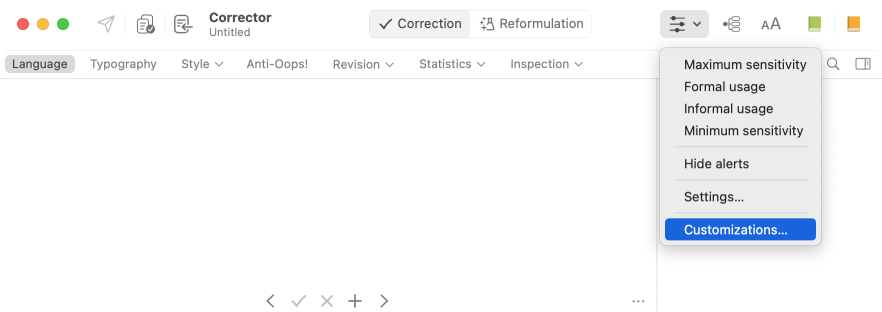
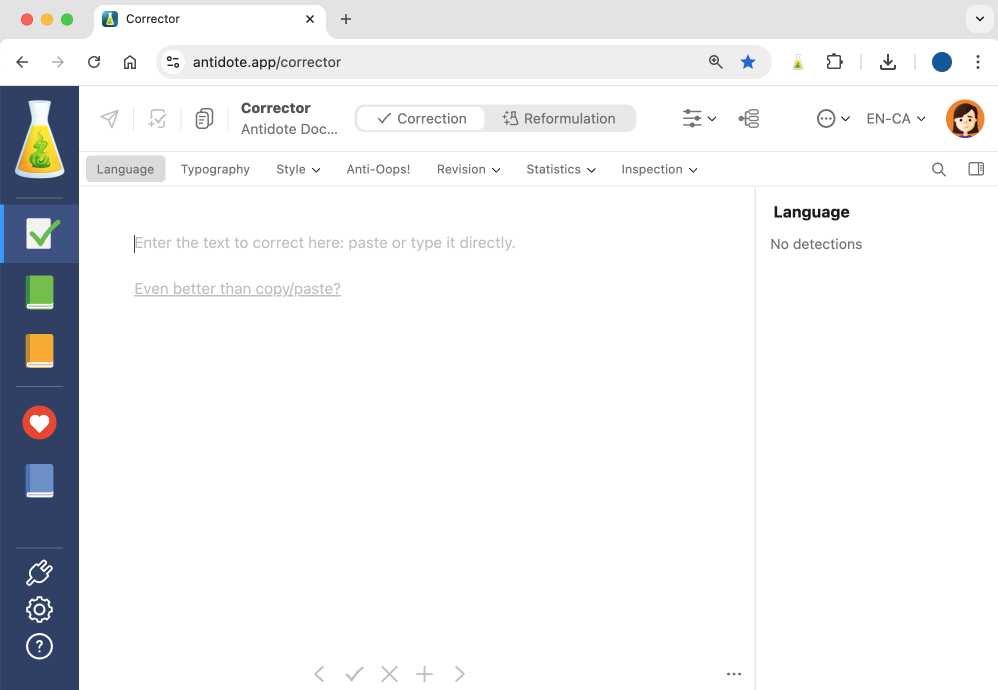
To create a list of custom words or rules, go to the Customizations window, represented by a blue book icon . Here are different ways you can access it:
While Antidote’s dictionaries contain hundreds of thousands of entries, some words have yet to be added, such as the spelling of your organization’s name or a technical term specific to your field. Include them in a personal dictionary for the corrector to recognize them and detect when they’re spelled incorrectly.
Create as many personal dictionaries as you want. They’re useful for organizing your glossaries (IT, marketing, legal, etc.).
How to Create a Personal Dictionary
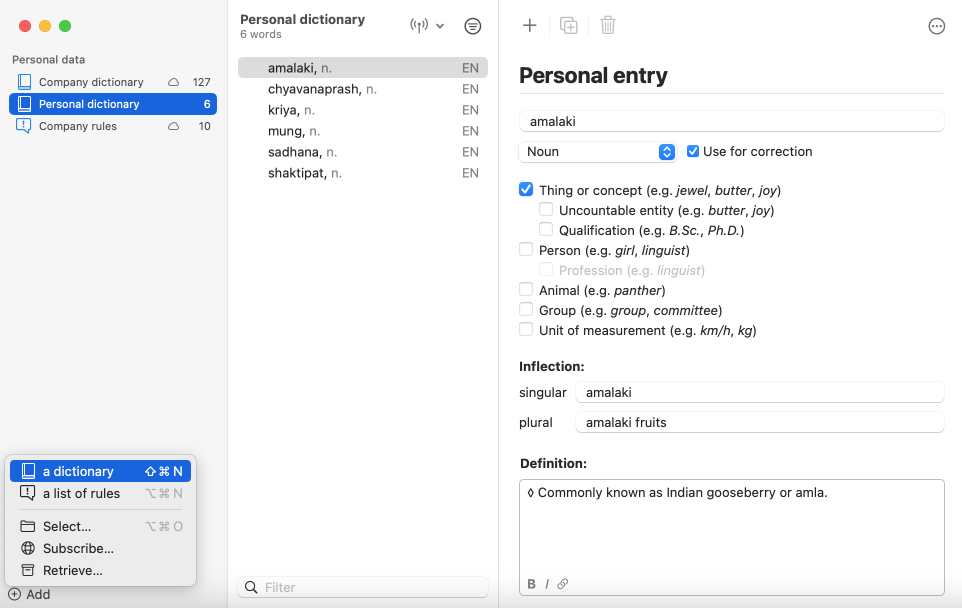
Go to the Customizations window, click Add (1) in the bottom left corner, then select a dictionary. Name your dictionary (2).
To add an entry to your dictionary, click the button (3).
A) Type your word in the entry field. B) Select its syntactic category: noun, adjective, verb, etc. C) Check its characteristics: thing, person, animal, etc. D) Specify its inflected forms: singular and plural spelling, comparative and superlative forms, etc. E) Add a definition (optional).
1
2
3
A
B
C
D
E
How to Add an Entry From the Corrector
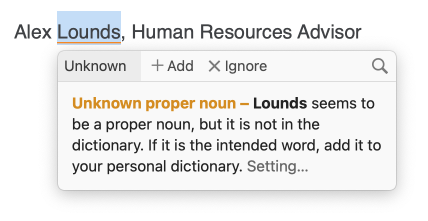
Antidote flags any word it doesn’t recognize and suggests that you add it to a personal dictionary. Avoid unnecessary detections by clicking Add in the tooltip, then selecting the dictionary of your choice.
Custom Rules
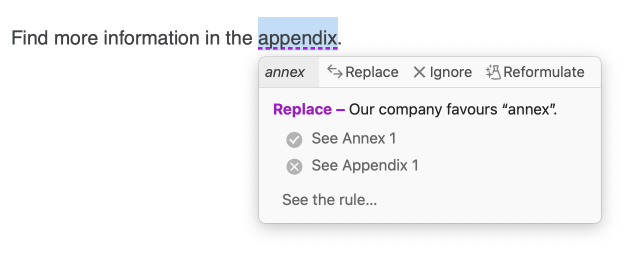
Integrate rules so Antidote takes them into consideration when analyzing your text. For example, create a custom rule for a word your organization favours over another (e.g. annex rather than appendix) or for a preferred variant when multiple spellings are possible (e.g. programme rather than program). Antidote underlines detections related to your custom rules in purple in the corrector’s interface.
How to Create Custom Rules
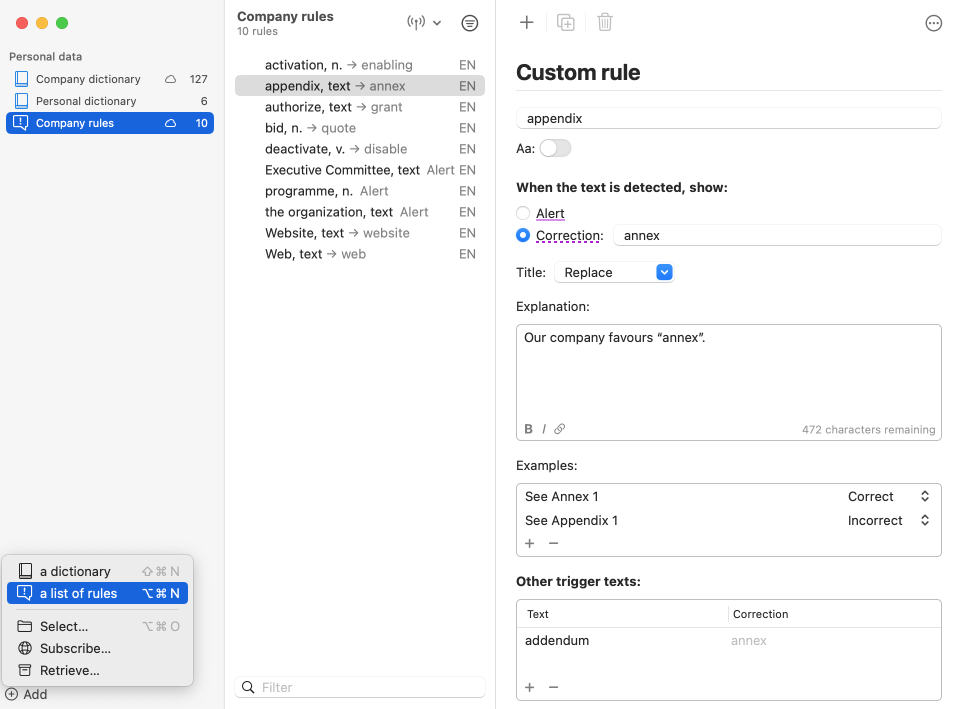
Go to the Customizations window. Click Add (1) in the bottom left corner, then select a list of rules. Name your list (2).
To add a custom rule, click the button (3).
A) In the entry field, type the word or string of words that will trigger the rule. Careful: Enter the term to avoid so Antidote recognizes it as an error. B) Choose the type of detection: alert or correction (write the term to use). C) Choose the tooltip title: review, replace, rephrase, etc. D) Explain your rule: this text will appear in the tooltip. E) Add correct and incorrect examples to clarify your rule (optional). F) Add other trigger texts (optional).
1
2
3
A
B
C
D
E
F
How to Add a Rule From the Corrector
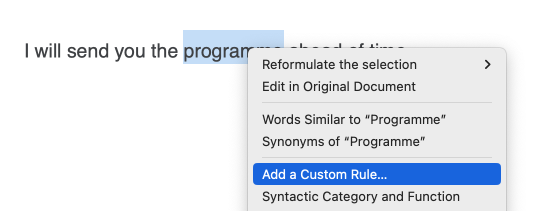
The corrector’s interface makes this easy. Select the word that the rule will cover, right-click, then select Add a Custom Rule from the drop-down menu.
In the window that pops up, select the list to which you want to add the rule.
Settings
The settings provide Antidote with your linguistic preferences. The corrector’s detections then reflect your writing standards: when to use em dashes and en dashes, which national variety of English you prefer (Canada, US, UK), if you use the Oxford comma, etc.
How to Access the Settings
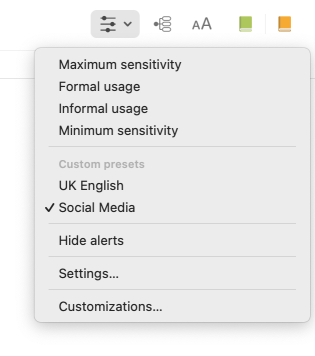
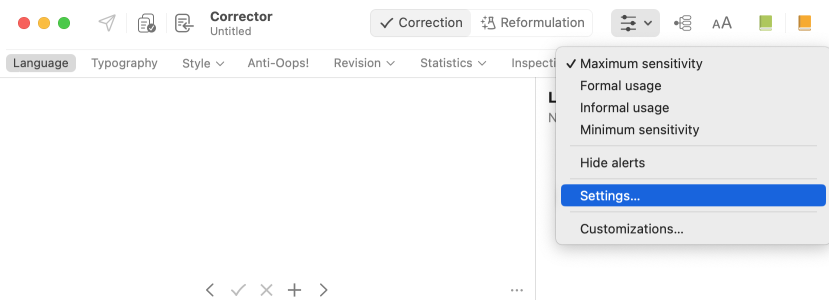
A) The menu in the corrector’s interface
B) Antidote’s menu bar
Windows: Resources > Options (Ctrl + R)
Mac (two options): Antidote 12 > Settings (⌘ + ,) or Corrector > Settings (⌘ + R)
How to Adjust the Settings
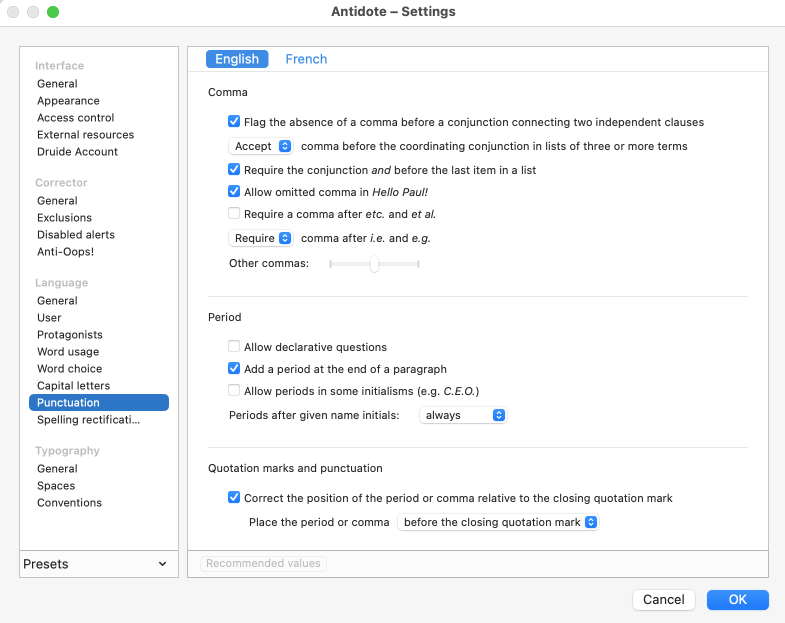
In the settings window, go through the list of panels on the left (1) and select your preferences for each (2). The list might seem long, but it’s quick to fill out. The details you add tailor Antidote to your needs, making it all the more efficient. Once you’ve finished configuring the settings, click OK (3).
1
2
3
Saving Different Presets
Do your writing standards vary depending on the type of content you’re creating? For example, do you write numbers under 10 in numerals on social media but as words in your other documents? Are you based in Canada but occasionally work on projects in the UK and need to use that spelling variety?
This is where saving different custom presets comes in handy. Once you do, you can choose which one to use in the corrector’s interface.
Antidote lets you optimize your writing experience by creating personal dictionaries, adding your own rules and adjusting the settings. The more you customize the corrector’s interventions, the better it meets your needs. Antidote will focus on necessary corrections that are relevant to you, saving you precious time and enhancing your productivity. Don’t hesitate to explore the myriad of options at your fingertips!

 3 min
3 min


 123
123