 3 min
3 min
Getting Started With Antidote: Correcting and Rewriting
So you’ve chosen Antidote to remedy your writing and want to make the most of your new writing companion. But where to start? This series of four articles shows you the functions you need to know to use the corrector, dictionaries and language guides efficiently.
Antidote makes text correction a walk in the park—it underlines errors and you correct them in just a few clicks. But there’s much more to Antidote than that. It invites you to make informed choices so you can write better. In this first article of the Getting Started With Antidote series, discover how to properly use the corrector to revise your text and rephrase segments as needed.
SERIES — Getting Started With Antidote
- Correcting and Rewriting
- Improving Stylistic Elements
- Leveraging the Dictionaries and Guides
- Customizing the Tools
How to Launch the Corrector
You can run Antidote directly where you write: word processors (Word, Google Docs, Libre Office), browsers (Chrome, Edge, Firefox, Safari), email clients (Outlook, Gmail, Mail, Thunderbird) and other software (Excel, PowerPoint, InDesign).
There are many ways to run the corrector:
- The Antidote Agent menu (watch the tutorial )

- The Antidote Connector, found in an application’s or browser’s toolbar
- Live Correction, in editable text fields on the web
- The context menu, appearing when you right-click
Once launched, Antidote opens your text in the corrector. All the changes you make will be directly applied to the original document. No need to copy-paste!
Can’t find Antidote in your software? Make sure the connectors have been added. Select Integration of Antidote with your software from the Antidote Agent (on Windows or Mac), or follow the instructions for Antidote Web in the Quick Start Guide.
How the Corrector Works
As soon as it gets your text, Antidote analyzes it and makes a diagnosis. It harnesses the power of artificial intelligence (AI)—trained by our linguists and their human intelligence—to suggest corrections, improvements, and with a subscription, reformulations. The results first appear in the Language view.
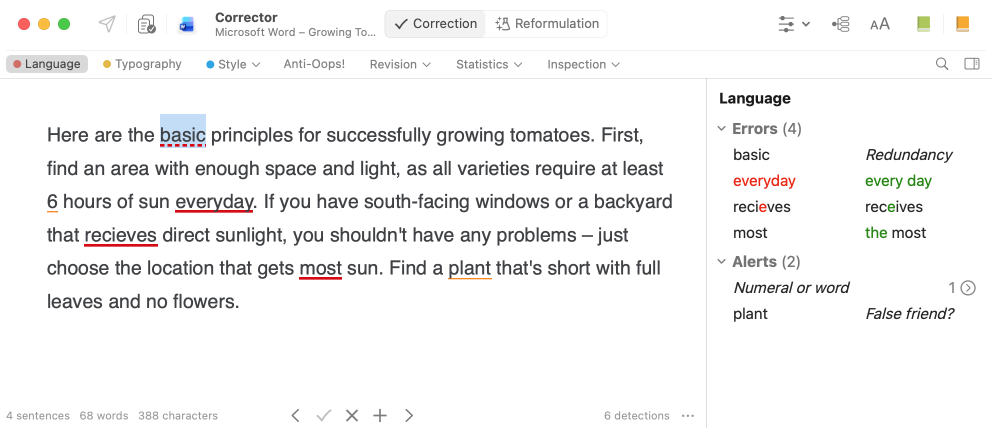
The corrector detects a wide range of errors: spelling, punctuation, conjugation, possessives, false friends, irregular syntax, and more. It underlines what you need to correct or double-check, while providing solutions and explanations. And you always get to decide which changes to apply.
Understanding the Underlining
In the Language view, detections are underlined in several styles.
| Type of underlining | Meaning | Example |
|---|---|---|
| Solid red underlining | Error to correct with a click |  |
| Dotted red underlining | Error to correct manually or using reformulation |  |
| Thin orange underlining | Alert or potential error to verify | 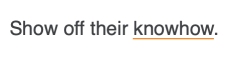 |
| Wavy orange underlining | Several possible spellings to check |  |
| Dotted red span | Discontinuity* to rephrase | 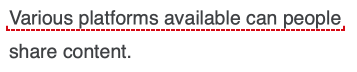 |
| Solid or dotted purple underlining | Detection related to your customizations | 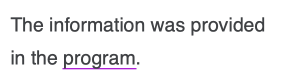 |
* What’s a discontinuity?
A discontinuity is a segment with a complex structure error that prevents Antidote from analyzing it adequately. There may be a missing, misplaced or extra word, or the syntax might be awkward.
How to Correct and Rephrase Your Text With the Corrector
1. Select a detection
Start the correction by clicking the first underlined detection, or another one if you prefer. Once you click it, a tooltip appears.
2. Read the tooltip
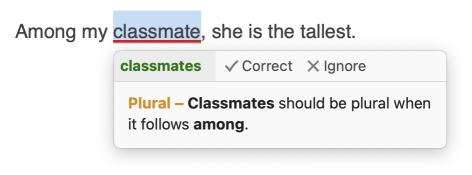
The tooltip provides relevant information to better understand the detection: a correction suggestion (A), a short explanation (B) and a selection of commands (C) depending on the type of detection.
-
 ABC
ABC
Tip — If the title introducing the explanation is orange (Plural, in the example), click it to open the relevant article in the language guides. If the title is green, clicking it opens the dictionaries.
3. Handle a detection
Click one of the commands in the tooltip to handle a detection: Correct, Replace, Ignore, etc. If Antidote has identified several identical detections, the selected action will apply to all of them.
With a subscription, the corrector also includes the Reformulate command for certain types of errors, such as redundancies. Click it to see rewriting suggestions.
For discontinuities, Antidote automatically shows reformulation suggestions in the tooltip.
Antidote provides up to four ways to rephrase a segment with generative AI. Use the chevrons on either side to see the suggestions, from the most faithful to your text to the most modified. Choose the one you prefer, then click Replace to accept the entire sentence or double-click a bold segment to apply only this change to your text.
4. Go on to the next detection
Continue correcting your text by selecting the next underlined word or choosing another detection in the list on the right.
Tip — Press ↲ to correct or ⇥ to ignore a detection and move on to the next.
How to Correct Typography
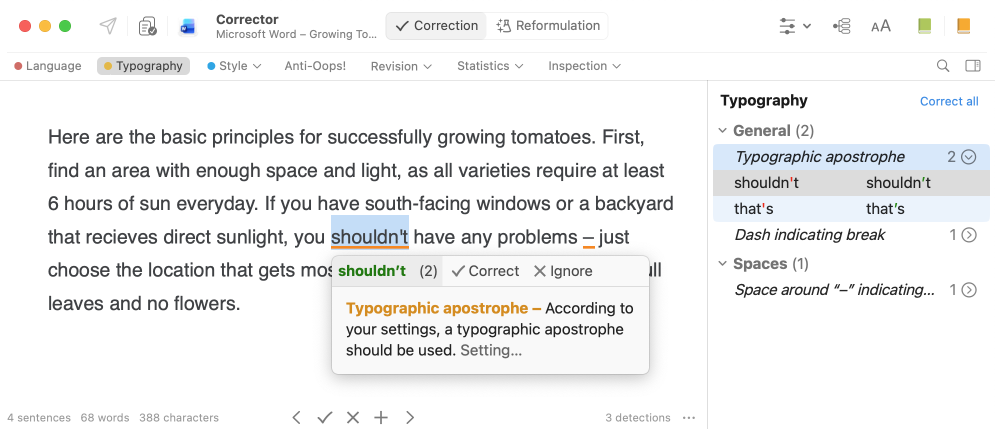
Do not overlook the Typography view. Use it to standardize apostrophes and quotation marks, dashes and hyphens, the use of the Oxford comma, and more.

In the Typography view, detections are underscored by two types of underlining.
| Type of underlining | Meaning | Example |
|---|---|---|
| Thick orange underlining | Error to correct with a click |  |
| Dotted thick orange underlining | Error to correct manually |  |
Use the tooltips to correct detections. As in the Language view, if Antidote identifies several identical detections (A), the selected action will apply to all of them. You can also correct one detection at a time using the list on the right (B). If you’re short on time, click Correct all (C).
-
 ABC
ABC
There you go. Your text is error-free and its typography neat!
But is it as well written as you’d like? Ask Antidote to find ways to improve the style and suggest smart solutions for rephrasing your sentences. Learn how to do so in the next article of our series, Getting Started With Antidote: Improving Stylistic Elements.
Further reading:
- User Guide: Correction Mode Presentation
- User Guide: Correction Process